Today we are going to learn of the new feature added by Apple guys in iOS 6.
So stay with me, and do it step by step by .. don't forget to drop me a message or comment.
Note : This Application Developed Using : iOS 6
PHASE - I (Create New Project)
So, Let's Fire Xcode!!
Go to File --> New --> Project
Now we can see a Window for selecting our application templet
So make sure you select Application in iOS option on your Left hand side.
then select Single View Application as shown in below picture and Go for Next..

In the Next Window we need to put Our Project Details this way
Product Name : CollectionViewDemo
Organization Name :RDCWorld
Company Identifier : com.rdcworld
Class Prefix : (leave it blank for now)
Devices : iPhone
Note : Don't forget to Make Tick mark on "Use Automatic Reference Counting" option.

Go to Next --> Create.
Now you can see Xcode default dashboard with our newly created project .
PHASE - II (Design UI)
We need to add UICollectionView and UICollectionViewCell on our screen to get it work.
UICollectionView : for showing our data (image, text etc) in a grid form
UICollectionViewCell : for design particular cell on Collection view
So, Just open ViewController.xib file you can see default blank layout
1. let's drag UICollectionView from Object library and fill it on layout as shown in picture

2. now we need to create a Layout for our CollectionView cell, so we are going to add one XIB file.
File Menu --> New --> File
Select View templet in "User Interface" option under iOS (see popup window screen shot), go next

select device family : we are creating for iPhone.

Given it name as "MyCell" and go for create.

Good!! now you can see default blank layout, just delete it (select it and press delete button) and drag UICollectionViewCell from object library

now go the Size Inspector and change width=100 and hight =100

now select Attribute Inspector and change Background color and then drag UILabel on it as below image

select UILabel --> in Attribute Inspector --> scroll down and change its Tag = 100 (because we need to get it in ViewController.m file)
this time our project structure is look like

PHASE - III (Create IBOutlets and IBAction )
We are going to create IBOutlet for UICollectionView .
So just open ViewController.xib
Okay, Now select Assistant Editor on Top Right side

You can see our ViewController.xib (Left side) + ViewController.h (Right side) opened together.
Select UICollectionView --> Right Click on it
Click on "New Referencing outlet" option and drag cursor to ViewController.h(right side) file, when your cursor is between @interface and @end you can see like this.

Now you will get Popup Window
just put Name : "myCollectionView" and click on Connect.

Done!! now back to Standard Editor

PHASE - III (Hook Up Delegate and Datasource)
We need to mentioned that we are going to implement UICollectionView's Datasource and Delegate protocols,
so do it now, later we will define in our ViewController.h file too.
1. sélect ViewController.xib file.
2. select UICollection
On top right corner (below to Organizer tab) select Connection Inspector
Click on DataSource and drag it to the File owner as shown in below screen shot

Now do the same for Delegate (Drag delegate to the file owner)
Note : you can achieve same by adding below two lines in viewDidLoad method of your ViewController.m file
myCollectionView.dataSource = self;
myCollectionView.delegate=self;
Great!! You are on the way!!
PHASE - IV (Writing Code)
Now Save app, and open ViewController.h file
1. add UICollectionView's protocols <UICollectionViewDataSource, UICollectionViewDelegate> to @interface
@interface ViewController : UIViewController<UICollectionViewDataSource, UICollectionViewDelegate>
2. define mutable array with property, name as "contentArray"
@property (nonatomic, retain) NSMutableArray *contentArray;
So Finally our ViewController.h file look like
-----------------------------------------------------------------------------------------------------------------------------------------
//
// ViewController.h
// CollectionViewDemo
//
// Created by RDC on 3/6/13.
// Copyright (c) 2013 RDCWorld. All rights reserved.
//
#import <UIKit/UIKit.h>
@interface ViewController : UIViewController<UICollectionViewDataSource, UICollectionViewDelegate>
@property (weak, nonatomic) IBOutlet UICollectionView *myCollectionView;
@property (nonatomic, retain) NSMutableArray *contentArray;
@end
-----------------------------------------------------------------------------------------------------------------------------------------
Now come to ViewController.m file , open it
1. add synthesize (for all declared variable in header file with @property) just below to @implementation
@synthesize myCollectionView;
@synthesize contentArray;
2. in viewDidLoad method
2.1 Initialize our content array and put the data into it.
contentArray = [[NSMutableArray alloc] init];
for (int i=0; i<100; i++) {
[contentArray addObject:[NSString stringWithFormat:@"Cell %d",i]];
}
2.2 get the UICollectionViewCell's Nib file (.xib file) here
UINib *cellNib = [UINib nibWithNibName:@"MyCell" bundle:nil];
[myCollectionView registerNib:cellNib forCellWithReuseIdentifier:@"cvCell"];
2.3 create FlowLayout for collection view with its item size
UICollectionViewFlowLayout *flowLayout = [[UICollectionViewFlowLayout alloc] init];
[flowLayout setItemSize:CGSizeMake(100, 100)];
2.4 add scroll direction (in this we want as Horizontal scroll)
[flowLayout setScrollDirection:UICollectionViewScrollDirectionHorizontal];
2.5 add FlowLayout to our Main collectionView
[myCollectionView setCollectionViewLayout:flowLayout];
3. Now Heart of the Application : we need to implement UICollectionView's Datasource & Delegate method
Note : we have already declared these protocols in header file and Hooked up with Layout.
Here we have some optional and mandatory methods, I will mention
at the end of file but before @end add these methods
// DataSource - optional method
- (NSInteger)numberOfSectionsInCollectionView: (UICollectionView *)collectionView {
return 1;
}
// DataSource - mandatory methods
-(NSInteger) collectionView:(UICollectionView *)collectionView numberOfItemsInSection:(NSInteger)section{
return [contentArray count];
}
-(UICollectionViewCell *)collectionView:(UICollectionView *)collectionView cellForItemAtIndexPath:(NSIndexPath *)indexPath {
NSString *cellData = [contentArray objectAtIndex:indexPath.row];
static NSString *cellIdentifier = @"cvCell";
UICollectionViewCell *cell = [collectionView dequeueReusableCellWithReuseIdentifier:cellIdentifier forIndexPath:indexPath];
UILabel *titleLabel = (UILabel *)[cell viewWithTag:100];
[titleLabel setText:cellData];
return cell;
}
// Delegate - optional method
-(void) collectionView:(UICollectionView *)collectionView didSelectItemAtIndexPath:(NSIndexPath *)indexPath{
NSString *cellData = [contentArray objectAtIndex:indexPath.row];
UIAlertView *alert = [[UIAlertView alloc] initWithTitle:@"" message:[NSString stringWithFormat:@"You have selected %@ item",cellData] delegate:self cancelButtonTitle:@"Ok" otherButtonTitles:nil, nil];
[alert show];
}
So Finally our ViewController.m file look like
-----------------------------------------------------------------------------------------------------------------------------------------
//
// ViewController.m
// CollectionViewDemo
//
// Created by RDC on 3/6/13.
// Copyright (c) 2013 RDCWorld. All rights reserved.
//
#import "ViewController.h"
@interface ViewController ()
@end
@implementation ViewController
@synthesize myCollectionView;
@synthesize contentArray;
#pragma mark - ViewController's Life Cycle methods
- (void)viewDidLoad
{
[super viewDidLoad];
//initialize array and put data on it
contentArray = [[NSMutableArray alloc] init];
for (int i=0; i<100; i++) {
[contentArray addObject:[NSString stringWithFormat:@"Cell %d",i]];
}
//get the cell nib we have created
UINib *cellNib = [UINib nibWithNibName:@"MyCell" bundle:nil];
[myCollectionView registerNib:cellNib forCellWithReuseIdentifier:@"cvCell"];
//create flow layout
UICollectionViewFlowLayout *flowLayout = [[UICollectionViewFlowLayout alloc] init];
[flowLayout setItemSize:CGSizeMake(100, 100)];
[flowLayout setScrollDirection:UICollectionViewScrollDirectionHorizontal];
//add flow layout to our collection view
[myCollectionView setCollectionViewLayout:flowLayout];
//optional : if you didn't hook up Datasource and delegate with File owner, you can use this
//myCollectionView.dataSource = self;
//myCollectionView.delegate=self;
}
- (void)didReceiveMemoryWarning
{
[super didReceiveMemoryWarning];
}
#pragma mark - UICollectionView DataSource methods
// DataSource - optional method
- (NSInteger)numberOfSectionsInCollectionView: (UICollectionView *)collectionView {
return 1;
}
// DataSource - mandatory methods
-(NSInteger) collectionView:(UICollectionView *)collectionView numberOfItemsInSection:(NSInteger)section{
return [contentArray count];
}
-(UICollectionViewCell *)collectionView:(UICollectionView *)collectionView cellForItemAtIndexPath:(NSIndexPath *)indexPath {
NSString *cellData = [contentArray objectAtIndex:indexPath.row];
static NSString *cellIdentifier = @"cvCell";
UICollectionViewCell *cell = [collectionView dequeueReusableCellWithReuseIdentifier:cellIdentifier forIndexPath:indexPath];
UILabel *titleLabel = (UILabel *)[cell viewWithTag:100];
[titleLabel setText:cellData];
return cell;
}
#pragma mark - UICollectionView Delegate method
// Delegate - optional method
-(void) collectionView:(UICollectionView *)collectionView didSelectItemAtIndexPath:(NSIndexPath *)indexPath{
NSString *cellData = [contentArray objectAtIndex:indexPath.row];
UIAlertView *alert = [[UIAlertView alloc] initWithTitle:@"" message:[NSString stringWithFormat:@"You have selected %@ item",cellData] delegate:self cancelButtonTitle:@"Ok" otherButtonTitles:nil, nil];
[alert show];
}
@end
-----------------------------------------------------------------------------------------------------------------------------------------
Make sure your AppDelegate file code should be default
Finally our AppDelegate.h file look like
-----------------------------------------------------------------------------------------------------------------------------------------
//
// AppDelegate.h
// CollectionViewDemo
//
// Created by RDC on 3/6/13.
// Copyright (c) 2013 RDCWorld. All rights reserved.
//
#import <UIKit/UIKit.h>
@class ViewController;
@interface AppDelegate : UIResponder <UIApplicationDelegate>
@property (strong, nonatomic) UIWindow *window;
@property (strong, nonatomic) ViewController *viewController;
@end
-----------------------------------------------------------------------------------------------------------------------------------------
Finally our AppDelegate.m file look like
-----------------------------------------------------------------------------------------------------------------------------------------
//
// AppDelegate.m
// CollectionViewDemo
//
// Created by RDC on 3/6/13.
// Copyright (c) 2013 RDCWorld. All rights reserved.
//
#import "AppDelegate.h"
#import "ViewController.h"
@implementation AppDelegate
- (BOOL)application:(UIApplication *)application didFinishLaunchingWithOptions:(NSDictionary *)launchOptions
{
self.window = [[UIWindow alloc] initWithFrame:[[UIScreen mainScreen] bounds]];
self.viewController = [[ViewController alloc] initWithNibName:@"ViewController" bundle:nil];
self.window.rootViewController = self.viewController;
[self.window makeKeyAndVisible];
return YES;
}
//for now leave rest all empty methods..
@end
-----------------------------------------------------------------------------------------------------------------------------------------
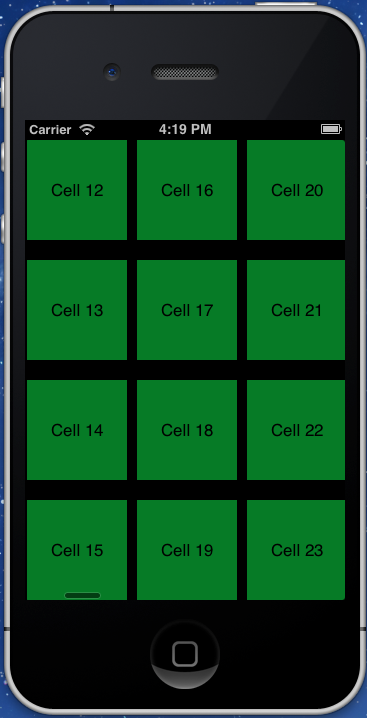
Okay wrap it up this application. let's Run it.
Here is the output

Cheers!! we did it. It was so simple because Apple did everything for us.
we just made it alive.
You can find complete project source code zip file here : CollectionViewDemo.zip (73.94 KB)
I Would love to here your thoughts !!


